Graphic to visualize /comp compression settings

User discussion and information resource forum for TeraByte Drive Image products, including TBNetManage.
Post Reply
timg11
Posts: 298
Joined: Sun Oct 02, 2011 4:31 pm

Graphic to visualize /comp compression settings

Post by timg11 »

I was looking in the IFW manual, and trying to understand how the compression options work.
I read the text several time, but found it confusing.

I attempted to graph the settings to better visualize.
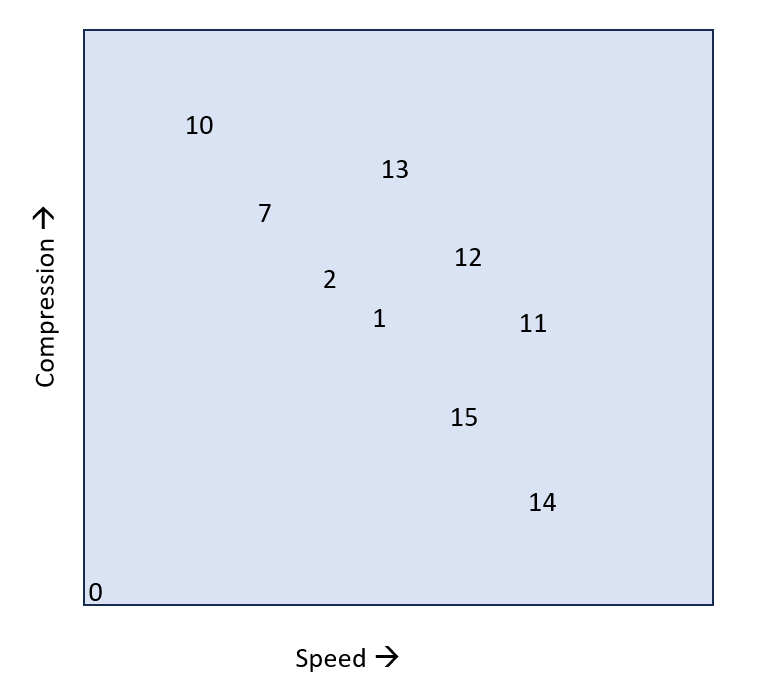
Image

Is this correct?


From the manual:

/comp:n Compression=n
Specifies how Image for Windows should compress backup files as they are created. Valid values for n are 0 through 15. The equivalent n values for the GUI compression options are as follows:
0 – None
1 – Standard
2 – Enhanced Size - A
7 – Enhanced Size - B
10 – Enhanced Size - C
11 – Enhanced Size - D
12 – Enhanced Size - E
13 – Enhanced Size - F
14 – Enhanced Speed - A
15 – Enhanced Speed - B
The Enhanced Size - D/E/F options are faster than Enhanced Size - A/B/C, but provide less compression. Backup files will normally be compressed more than the Standard option. Enhanced Size values 2-10 offer increased compression as the value increases at the expense of speed. Enhanced Size values 11-13 (D/E/F) offer slightly less compression at a faster speed than their 2/7/10 (A/B/C) counterparts.
The Enhanced Speed - A/B options offer decent compression with the emphasis on back up speed over backup file size. Backup files will normally be compressed less than the Standard option. Value 15 offers higher compression than 14 at the expense of speed.
Fracso
Posts: 108
Joined: Fri Nov 08, 2013 12:37 am

Re: Graphic to visualize /comp compression settings

Post by Fracso »

Interesting graphic. It suggests two "families" of settings, 1-2-7-10-14-15, and 11-12-13.

Too difficult to post an image in this forum.

Too difficult to post anything, for that matter. I always have to try several times.
TeraByte Support
Posts: 4105
Joined: Thu May 05, 2011 10:37 pm

Re: Graphic to visualize /comp compression settings

Post by TeraByte Support »

looks like old manual text, not current. Within each group the lower number is less compression (faster) and higher number more compression (slower). On slow write media, higher compression make a difference as well.
OldNavyGuy
Posts: 237
Joined: Mon Apr 17, 2023 4:08 am

Re: Graphic to visualize /comp compression settings

Post by OldNavyGuy »

Current (pp 197-198 IFW User Manual) -

/comp:n Compression=n

Specifies how Image for Windows should compress backup files as they are created.

Valid values for n range from 0 to 43. The equivalent n values for the GUI compression options are as follows:

0: None
1: TB – Standard
2: ZLIB – Good
7: ZLIB – Better
10: ZLIB – Best
11: IPP – Good
12: IPP – Better
13: IPP – Best
14: TB – Fastest
15: TB – Faster
16: ZSTD – Fastest
19: ZSTD – Faster
22: ZSTD – Fast
25: ZSTD – Good
27: ZSTD – Default
29: ZSTD – Better
31: ZSTD – Enhanced
33: ZSTD – Superior
43: ZSTD – Best

The IPP – Good/Better/Best options are faster than ZLIB – Good/Better/Best but provide less compression. Backup files will normally be compressed more than the TB – Standard option.

ZLIB values 2/7/10 offer increased compression as the value increases at the expense of speed.

IPP values 11/12/13 offer slightly less compression at a faster speed than their 2/7/10 counterparts.

The TB – Fastest/Faster options offer decent compression with the emphasis on back up speed over backup file size. Backup files will normally be compressed less than the TB – Standard option. Value 15 offers higher compression than 14 at the expense of speed.

The ZSTD options provide a range from Fastest (fastest, least compression) to Best (slowest, most compression). Higher values may be substantially slower than the lower values.

Actual compression levels and speeds obtained will vary depending on the data being backed up and the system being used.

Note: The IPP options and the TB – Fastest/Faster options require version 2.72 or later.
The ZSTD options require version 4.06 or later. Attempting to open a backup file created using an unsupported compression value will result in a message to use the newer version or an error message that the image is corrupt (depending on the older version being used).

Default if omitted: Image for Windows uses TB - Fastest compression.
tas3086
Posts: 349
Joined: Mon Mar 19, 2012 6:15 pm

Re: Graphic to visualize /comp compression settings

Post by tas3086 »

For comparison purposes:
I've been using compression #11 and tried #27 (zSTD-default- touted to be the best) .
Here is the difference:
Win 11 OS File Size: 294.52 GiB

Compression - CPU -- Compressed size --- Time (Min)

#11 - @ 08% -- 168,154,264 kB --- 46.10
#27 - @ 25% -- 164,842,080 kB --- 45.05

so #27 is 0.9% faster 0.98% smaller and uses 3.12% more CPU than #11 note the 0.9 percent

I'd say there pretty even! I'd like to see a real graph of all options.
Post Reply